
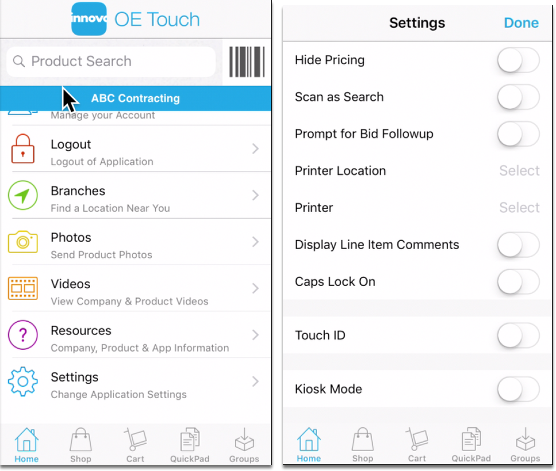
In Employee mode as of the iOS 3.3.0 release, there is a Settings option on the home screen.
In Customer mode as of the iOS 3.6.0 release, there is a Settings option on the home screen. Note: This does not appear on the scrolling tab bar in either mode.
To enable a setting, swipe the slider control from left to right and to disable swipe again from right to left. When enabled, the slider control will be highlighted in blue.
Hide Pricing
*New in Release 3.3.0*
*Applies to Employee Mode only*
This will display "Call for Pricing" throughout the app while in salesperson mode. You can turn this feature on and off and the pricing will reflect the change immediately.
Scan As Search
*New in Release 3.3.0*
*Applies to Employee Mode only*
This increases the fields we search on when using the barcode scanner - either by using the barcode icon or with an attached scanner. When an item is scanned, we typically match on UPC, internal Eclipse product (if prefixed with a "."), and customer part number. Turning on this setting will add description, keywords, and catalog number to the available matched fields.
Prompt for Bid Followup
*Applies to Employee Mode only*
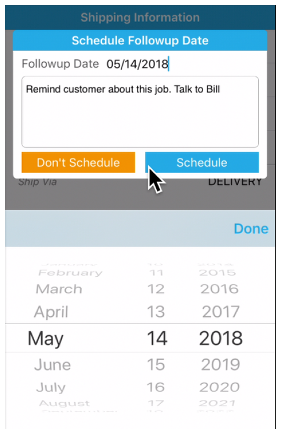
When enabled, the salesperson will be prompted for followup information when going from the Shipping Information screen to the Review Order screen. If the followup is scheduled, the order will be added to the Bid Followup Queue in Eclipse.
The Followup Date can be changed by pressing on the date and selecting a new date
A note can be entered in the box
Pressing Don't Schedule will not send the order to the Bid Followup Queue
Pressing Schedule will add the bid to the Bid Followup Queue
Printer Location / Printer
*New in Release 3.6.0*
*Applies to Employee Mode only*
With release 3.6.0 you now have the ability to print new or existing bids from the app. These settings allow you to select the location and the printer you would like to use for this feature. Please see our complete documentation on Printing Quotes in OE Touch for detailed information.
Display Line Item Comments
*New in Release 3.6.0*
*Applies to Employee Mode only*
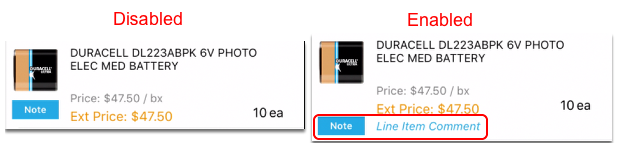
When enabled, in addition to the NOTE button displaying in blue, you will see the actual line item comment, in blue, next to the note button in the shopping cart.
Caps Lock On
*New in Release 3.6.0*
*Applies to Employee Mode only*
Enabling this setting will default all text to uppercase in the following text fields:
- Line item comments
- Order comments
- Shipping instructions
- Internal notes
- Customer PO#
- Release number
- Product group names
Touch ID/Face ID
*New in Release 3.6.0*
*Applies to Employee Mode & Customer Mode*
When enabled, you can use your Touch ID or Face ID to login to the app. The device must already be enabled for this feature.
Kiosk Mode
*New in Release 3.6.0*
*Applies to Employee Mode only*
Please see our Kiosk Mode article for more information on this feature.
Comments
Please sign in to leave a comment.