
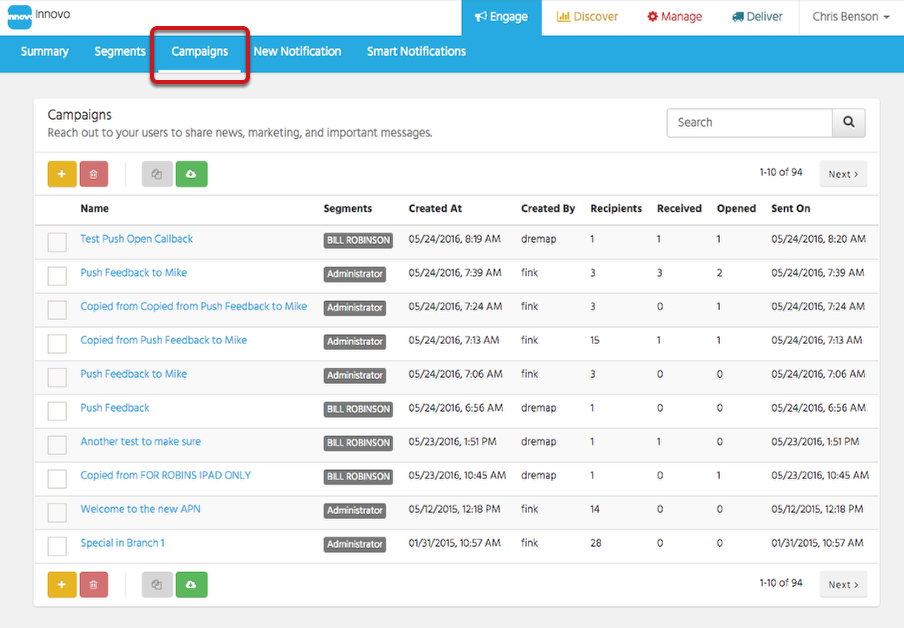
The Campaign page is where you create and manage the push notifications that you send to your users and customers. The table lists all existing Campaigns, the segment they were sent to, date created, created by, the number of recipients, number that received it, how many opened the message, and when it was sent.
Clicking on the name of a campaign brings up the New Notification window where you can view further details of the Campaign Notification.
Enter a campaign name in the search box at the top right to filter the campaigns displayed.
Exporting Data

Viewing Campaign Recipients
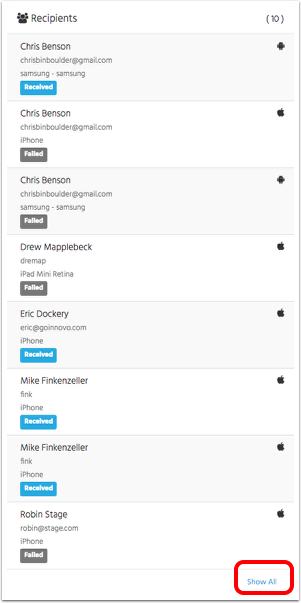
After a campaign has been sent, you can see the recipient list when you click on the campaign name. The list will show either received, in blue, or failed, in gray, next to each user indicating whether the user received the notification or not. The first 8 recipients are displayed, click on "Show All" at the bottom right to see all recipients. Hovering your mouse over the "Failed" tag will display the reason that notification failed. For information on failed reasons, please click here for Apple and here for Android.
Creating a New Campaign

Click on the yellow + button to open the New Notification window.
For details on the new notification page, click here.
Editing or Deleting Campaigns
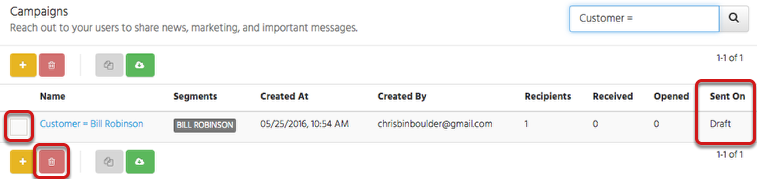
Only campaigns that have been saved, but not sent yet can be edited directly. Campaigns that have not been sent will indicate "Draft" for the Sent On date. To edit a draft Campaign, click on its name. This brings up the same popup window as starting a new campaign, only with the existing campaign's information in place. From that point forward, changing the campaign name and adding, editing, or deleting criteria is the same as it is for new campaigns as described earlier in this article.
To delete an existing Campaign, check the box next to the segment's name, then click the red trash can icon. To delete multiple Campaigns at once, check the boxes next to all segments to be deleted, then click the red trash can icon.
Copying an Existing Campaign
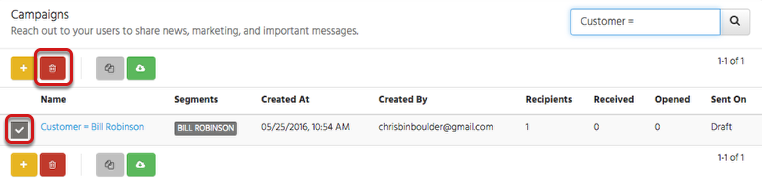
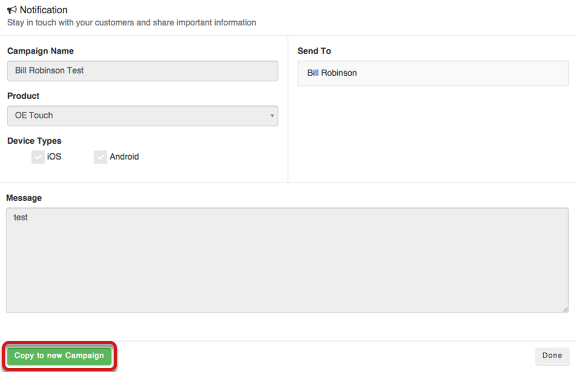
To copy a campaign, check the box next to its name and click the gray copy icon. Note: You can review the segment's details and also copy by clicking on the name of the Campaign and then clicking the green Copy to New Campaign button at the bottom left.
Comments
Article is closed for comments.